
 Español
 English
 Português
 中文
中文Lectures > FCP --> XML --> Pro Tools (Workflow between Final Cut and ProTools using XML)
FCP --> XML --> Pro Tools (Workflow between Final Cut and ProTools using XML)
Two months before we started shooting Juan José Campanella´s film "The Secret in their Eyes", we had to make lots of tests to get to an efficient workflow between Final Cut and ProTools using XML. What we have learned is expressed in this article.
Our main concern was how to extract the edition information from FCP. How to transport the FCP timeline´s audio tracks into ProTools timeline´s tracks. The goal would be to export from FCP only the editing instructions without the media.
Why?
Let's imagine we get a preview of Reel 1. They say: “Reel 1 is finished. It could change at the beginning and maybe somewhere else but is essentially finished”.
If the communication´s method between FCP and ProTools is through an OMF file with embedded media, for every time we´d receive an update of that reel we´d been receiving the media once again. We´d end up having in our hard drives the media duplicated over and over again.
Besides, OMF´s protocol does not support volume decisions nor panning, and each OMF file exported is limited on its size to only 2 Gb. Nowadays, using hard drive recording systems able to record up to 4 tracks (or more), in 24 bits audio formats, is very easy to exceed that limit. One solution to that problem would be to divide the FCP timeline´s tracks into two or more parts and then export OMF files not exceeding that 2 Gb limit. But this would be annoying, laborious and prone to all kind of huge mistakes.
How it would be possible to export from FCP only the editing instructions?
That was the objective of this investigation.
The problems were several:
A) What are the exporting options that FCP offers?
Just two (useful for post-production operations): OMF with embedded media and XML files.
We have already explained the nuisances of OMF with embedded media files.
And, what is XML?
The eXtensible Markup Language (XML) is an specification of general purposes for the creation of markup languages.
Let´s explain each word of that odd definition.
XML is classified as extensible because lets the user to define his/her own elements. Its main purpose is to help information systems to share structured data, mainly through internet, and is used both to encode documents and to serialize data.
A markup language is an artificial language that uses a set of texts, which give relative instructions on how the text is going to be shown. Markup languages have been in use for ages and recently have been used in word processing systems. A good example of markup language today is the HyperText Markup Language (HTML), one of the most used languages on the World Wide Web (www). HTML follows some of the markup conventions used on the printing/publishing industry, in the communication of printed works between authors, editors and printers.
Well, FCP is capable to export XML files that describe with meticulous precision the current edition on the timeline. So in this case, XML is a kind of incredibly detailed EDL (Edition List).
The look of this file opened as text is something like this:
<?xml version="1.0" encoding="UTF-8"?>
<!DOCTYPE xmeml>
<xmeml version="1">
<clip id="/1">
<name>/1</name>
<duration>2088</duration>
<rate>
<ntsc>FALSE</ntsc>
<timebase>24</timebase>
</rate>
<in>-1</in>
<out>-1</out>
<masterclipid>/1</masterclipid>
<ismasterclip>TRUE</ismasterclip>
<logginginfo>
<scene></scene>
<shottake>1</shottake>
</logginginfo>
<media>
<audio>
<track>
<clipitem>
<name>/1</name>
<duration>2088</duration>
<rate>
<ntsc>FALSE</ntsc>
Now, does ProTools understand XML?
No. Then?
Well, it would be necessary to find the way ProTools could understand the FCP editing information that is on a XML file. A software able to convert that XML document into a ProTools session would be needed
Is there any software that can do that? How is the name of that program?
Yes. It is called XMLPro, made by an English company named Gallery. So, it would be as simple as exporting an XML file of a sequence edited in FCP, then convert that XML file into a ProTools session using XMLPro, and finally, when opening that session in ProTools, the media would be automatically found and relinked to that session.
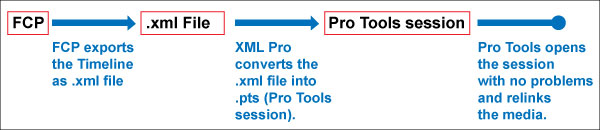
Yes, yes, yes. That was the dream.
There is an enormous problem: to make FCP able to export that kind of EDL that is an XML file, it needs to know many things about the original audio files. Things like which is the Unique Identifier (ID) of each of those audio files, to which other tracks that file is originally associated, which is the number of reel, what is its original timecode, etc., etc., etc.
And that data, is not included in the sound files FCP import on a regular basis?
Not all of it. FCP gets hardly the audio files names, their lengths and a couple of simple things more. That is insufficient information to be able to rebuild the same timeline in a ProTools session.
The new hard drive or flash card recorders capture audio in a format called BWF. A BWF file is the same as a WAV file with the only difference that a BWF file contains much more information apart from the sound itself than a WAV file, for instance, the timecode. Also, a BWF file is known as an “enriched” WAF file. That “enriching” data is written in a very similar way to the XML format. That information and its structure is so specific that deserved a name that could make it distinguishable from other markup languages. It is called iXML.
What?
iXML is an open standard, emerged to include metadata (data about the data) inside the BWF files captured by the recorders during shooting.
B) Now, FCP is incapable of reading the metadata contained in the BWF files (the mentioned iXML) during importing the audio files. Without that reading possibility, the XML documents that FCP is going to export later will contain infinite errors and are going to be completely useless.
So?
How to make FCP read, understand and export that metadata contained in the audio files that came from shooting (in iXML format)?
Back to XMLPro software.
XMLPro has a function that allows it to read the iXML information from the BWF files captured during shooting, and convert that data into a XML file.
Now yes, when importing that XML file (with the production sound's metadata) FCP will know at all times, all the details of each of the frames of the sound that are on the timeline. When exporting the XML file of that timeline, it will have all the needed information to make ProTools able to find and relink the editing instructions with the media to which is related to.
So, it is absolutely necessary that FCP imports the BWF files and its metadata. Without this step, poor FCP won't know how to show ProTools where the audios are, nor from which timecode should read, nor until which timecode should stop reading, for instance.
C) Well, now that we understand what each thing is, what function must accomplish and what limitation FCP has, How is, in real life, a post-production that includes FCP in its workflow, and that wish to communicate with the different picture and sound cutting rooms in the most efficient possible way using XML?
The routine will be that, after every shooting day, the production will bring a compact flash card to the studio where the sound post-production activity is going to occur.
Once there, the content of the card is going to be copied to some hard drive as a backup, and for its future use. From those BWF audio files, an XML file (with the iXML data contained in those audio files) is going to be generated using XMLPro software. After that it will be necessary to burn a DVD with those two elements (one folder containing the BWF audio files, and outside that folder, the XML file generated by XMLPro).
Later on, someone is going to pick that DVD up to take it to the FCP's cutting room.
Well then, let's see on detail how we are going to make this “delicate” first step that we have just explained.
First, we are going to copy the folder that contains the audio files from the last shooting day from the compact flash card to the backup hard drive.
Then, we are going to open XMLPro and click on the function we need: BWF Roll to XML.
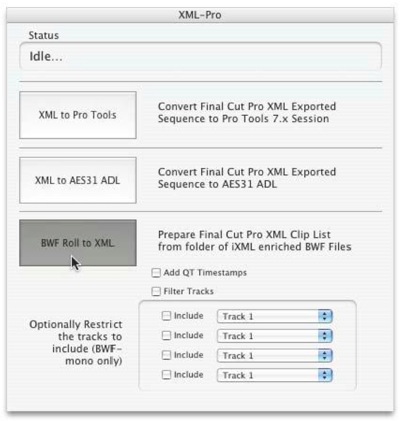
We are not going to select any option. Not Add QT Timestamps, nor Filter Tracks, nor any of the Include. Just the BWF Roll to XML button.
Note: This step by step is applicable to a workflow that includes a Sound Devices 744 recorder, a Red One cam and a FCP version 7.0.2 or later. The options to restrict or include tracks are applicable to sound recorders that can capture 6 or more tracks like Deva by Zaxcom, Cantar by Aaton or 788 by Sound Devices. These recorders entail another kind of workflow that we are not going to talk about here.
After clicking the BWF Roll to XML button, a window will open to browse and select the folder where the audio files from shooting are.
We are going to make a stop here to talk about this folder.
In the compact flash card, the files will be inside a folder called after the creation date of those files. Now, there will be times where the shooting day will end after midnight. For those days, the recorder is going to create two folders. One named after the date the shooting day started, and a second folder named after the date the shooting day ended (the last hours of that shooting day).
In those cases we advice to move the files from to second folder to the first one. That way, we'll end up having just one folder belonging to that shooting day (even if it was recorded in two different dates, this should be made just to avoid confusions).
The BWF files come in two different ways: Poly or Mono.
Poly is a kind of BWF file that contains one or more tracks. That is, graphically we are going to see one file only, but inside that file we might have several tracks.
In the case of BWF Mono, there will be as many files as takes, as tracks that were recorded.
Every edition software works better with one or the other kind of BWF files. In the FCP case the files that work better are the BWF Mono (the opposite way to Avid, that works better with the BWF Poly).
As we are talking about a workflow that includes FCP as the editing software, the sound person on the set will record sound on a BWF Mono format.
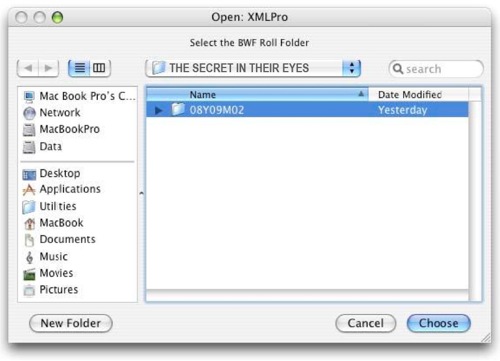
Well then, we select the folder that contains the BWF files from the last day of shooting and click on the Choose button. An instant later a window will open to choose where we are going to save that XML file, with a reasonable name.
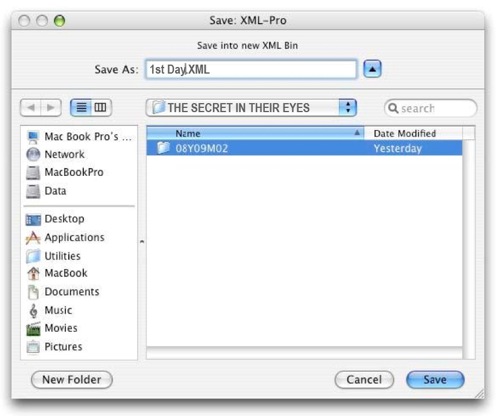
In this example we supposed that 1st Day or Day01 was a good name. The editing crew will tell if this is useful or not, or another identification is better. We suppose that is going to be better not to use accents nor characters that don´t belong to the English language.
After clicking on Save, we will be in conditions to burn a DVD ready to go to FCP cutting room.
The motorcyclist is going to take that DVD to the FCP suite and this will be the daily procedure during shooting.
D) We are now in the FCP suite.
After copying the folder with the audio files and the XML file into a hard drive that is destined to keep the sound of the film, the Editing Assistant will double-click the XML file´s icon. Automatically FCP will open and a window will ask to which project we will want to associate this XML.
If we were going to work on the first shooting day we will need to create a new project.
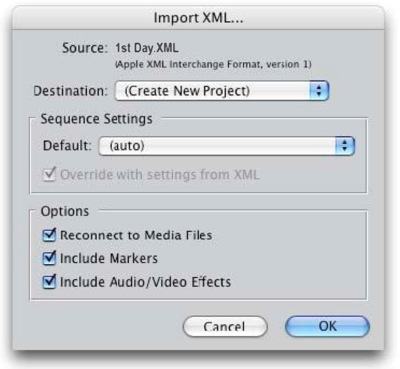
Once created, a new tab is going to appear in the FCP browser. In this case we are going to rename it as The Secret.
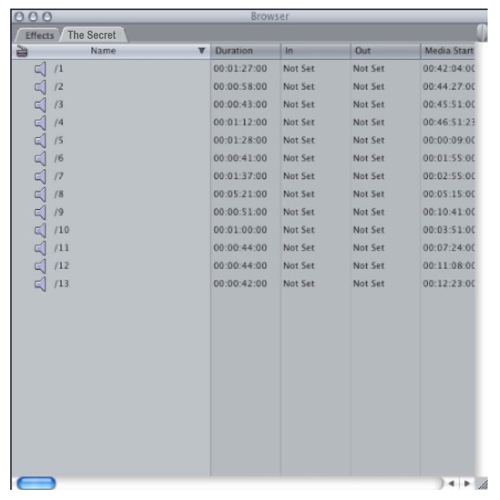
In the Browser we will see that the media is offline. Of course, that is because the XML file “told” FCP that the soundfiles were in the sound post-production studio´s computer. That was the last time it “saw” them. That XML file described to FCP the path to the audio files saved in that computer.
Only one step is going to be needed to solve this, it will be necessary to relink those audio files to the correct path inside that FCP suite´s computer. An alarm regarding lengths differences will have to be ignored. It is a bug. Now the sound files are going to be online.
Continuing, the assistant will import the footage that was filmed yesterday.
Then, selecting an image and its corresponding sounds, he/she will go to Modify > Merge Clips ...
A new item is going to appear in the FCP browser and it will be named with the same name that appears on the shooting clapperboard (should be the same name from the sound reports form too).
So, besides the image file´s name of the Red camera has a difficult name, for instance...
- A037_C006_0901XG_H
and the sound files names are...
- T01A_1.WAV
- T01A_2.WAV
- T01A_3.WAV
- T01A_4.WAV
...the assistant will be able to call it as he/she consider most useful, for instance 058_03_02, where the first three numbers will correspond with the sequence number, the next two numbers are going to be the scene number, and the last two numbers are going to indicate the number of take, all separate by an underscore sign. This renaming won't modify the Unique Identifiers (UID) of any file, whether is image or sound. It won't either break the link between a track and its “brothers” born simultaneously. It will only incorporate an information that will make our lives easier: an understandable name for each take.
It is very important to say here that underscores can be used but never the minus sign (-). This character MUST be avoided because of the way ProTools has to rename regions when we separate (split) a sound clip. In the future, when the sound is post-produced, aren't going to be confusions about the takes names if we avoid the minus sign (-).
This is not a subject we are going to analyze here, it is enough to say that minus sign MUST be avoided to name merged clips.
It is necessary to make another explanation here: SubClips MUST NOT be used. The kind of link FCP does of an image and a sound through the use of SubClips doesn't keep the communication with the metadata as it does the process Merge Clips... So please, do not use SubClips.
A benefit, for the Editing Assistant, of using this procedure of importing XML files, is that the sound takes in the Browser are going to be shown on a single line and not in several lines as tracks has. This simplifies the visualization and search of sound takes.
Now, we will jump up to the day when the image editing is finished.
E) That day the assistant will select the timeline with the finished reel, and will Save As... that project (for the sound department). Once on that “saved as” project, he/she will delete all the image tracks and will Save, that project again (to keep the changes just made). With that done, he/she will export the sound editing instructions in a XML format.
For that, he/she will go to File > Export > XML and this window will show up:
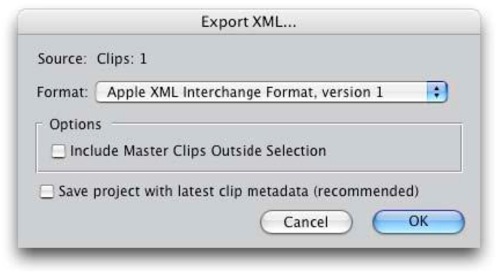
By default, FCP will suggest the Apple XML Interchange Format, version 5 format and will have selected the Save project with latest clip metadata (recommended)) box. We can leave it as FCP suggests or choose any other option. The kind of metadata that makes the description of the edited audio is common to any of the XML versions.
That XML file is the one he/she is going to send to the sound postproduction studio.
Warning: If he/she sends the XML file through the internet, it will be necessary to encapsulate it to avoid any corruption during its transportation through the net servers. To protect it from any corruption it will be enough with compressing it as a .zip file. When expanding that zip file, the XML files are going to be intact.
We will notice if the file is corrupted while opening it with XMLPro, we will see that file with grey color (not available for opening). So, if the XML file is going to be send through email, the Editing Assistant will need to compress it as a .zip file.
F) Once the XML file is in the sound postproduction studio, the sound editor will open the software XMLPro and click on XML to ProTools button.
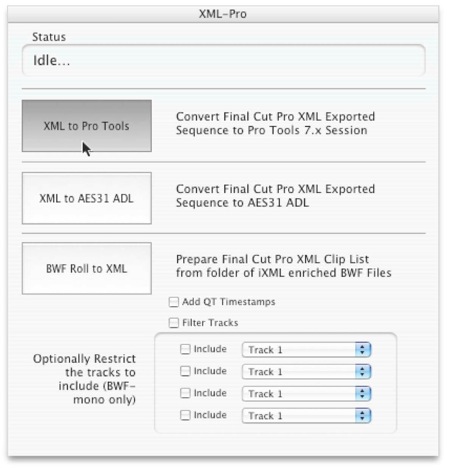
In an instant a ProTools session is going to be generated. Then, while opening that session, ProTools will search all the media as it will be offline and therefore a “Missing Files” window is going to be shown, saying that some number of Fades Files and zero Audio Files are missing. The fact that says Fades Files are missing and not Audio Files is a minor bug.
We will help it choosin “Manually Find & Relink”, and follow these steps: We will select all the files shown at the “Select Files to Relink” section of the window.
We will select also the hard disk where we have been copying all the production sound. We will click on “Find Links”button. A window named “Linking Options” will show up. Leaving selected only the “Match Duration” option (and leaving unselected the “Match Format” option) we will click on the “OK” button, et voilà!
That way we will have imported all the tracks and their clips, independently if the total size involved is larger or smaller than 2 Gb.
We will have imported also all the volume decisions that the image editor made.
And what is a much better thing, is that all the correlations between the different tracks of the same sound take will remain intact thanks to the metadata that will be still linking them.
What does this mean?
It means that if by any chance the editor deleted some of the tracks of a take, we -sound editors- can make those tracks reappear easily. Because nobody deleted or changed the metadata information into each sound on the timeline allowing the relinking.
The metadata that was exported by FCP inside the XML document will arrive intact to ProTools. And that data is the one that tells to ProTools “This sound clip was born together with three brothers. All of them are called 058_03_02, the only difference is that at the end of every name, they have a different track number”
058P03T02_1
058P03T02_2
058P03T02_3
058P03T02_4
Actually, that metadata tells ProTools much more things than this (in a “machine language”).
But well, today that is not our matter...
Appendix:
One last thing: The entire procedure described here is applicable to productions where the camera is a data camera like the RED One camera or some of the DSLR cameras (Canon EOS 5D, 7D, Nikon 700D, etc). In other words, the procedure is applicable only for cameras capable of generate a file or folder with files of takes.
When a production shots with a camera that exposes negative of 35mm or 16mm, and the negative reel can contain many takes, other problems emerge for the Image Editor.
In the case of a production that shoots with cameras that expose negative, this material, after reveal it and transfer it, is digitalized into the FCP as a whole, meaning, the entire reel.
That reel is going to have many takes.
Now, when doing Merge, FCP takes the total length of an image and applies that length to the new merged “Object”. In the case of the files generated with the RED One camera, for instance, the length of the clips of image and sound belonging to the same take are comparable, are similar.
Let's say, if the length of the sound clip of a take is 45 seconds, is reasonable to find that the length of the image clip of that take is 40 seconds.
Then the merged “Object” of that take (sound and image put together) will last the 40 seconds the image lasts.
The problem starts when the Image Editor uses a very commonly used function in FCP which is the Match Frame function. When doing Match Frame, FCP will show the Editor the image and sound clip of the merged “Object” on the Viewer window.
Well, in the case of productions that involved cameras that shot in 35mm or 16mm, the digitalized image file will last the entire reel, let's say, 10 minutes.
So doing Match Frame in these cases, the Editor will find that the merged “Object” on the Viewer window lasts 10 minutes, but only 45 seconds of that “Object” has sound, which is a very short portion of it.
Searching for something in particular inside an entire 10 minutes reel can be a very annoying and not very nice thing to do.
So then, the workflow method described here, using XML, could be a nuisance for the Image Editor if the production shots with cameras of 35mm or 16mm.
But of course, every time is more and more usual to find productions shooting with data cameras and less with cameras that expose negative.
So...